
Your book's pages live on the Designs tab. Each card is one page. A page that isn't drawn yet shows a big Get the prompt button on blank paper.
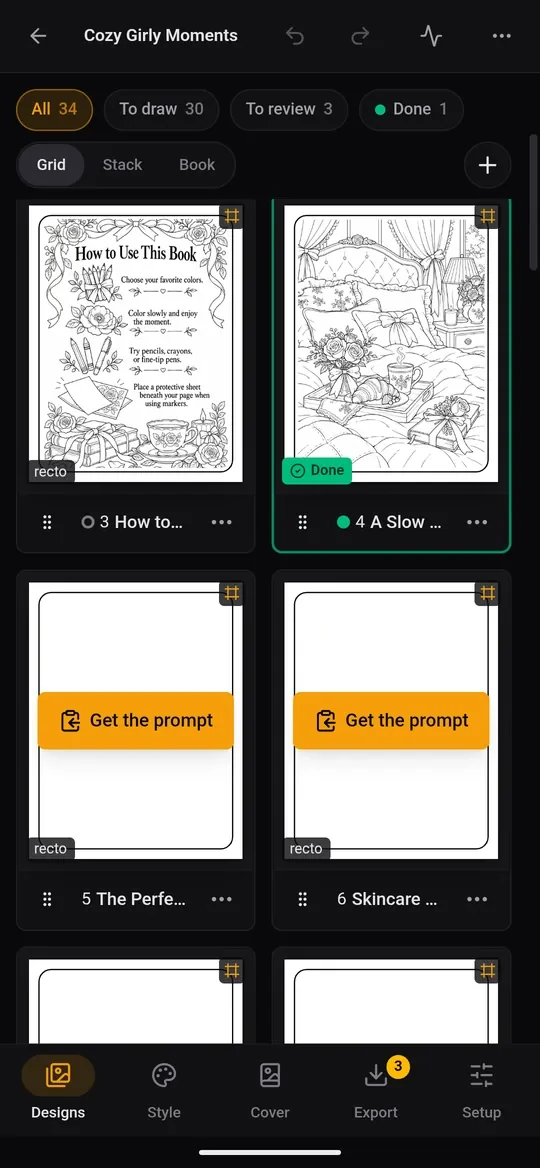
Draw one page in two taps
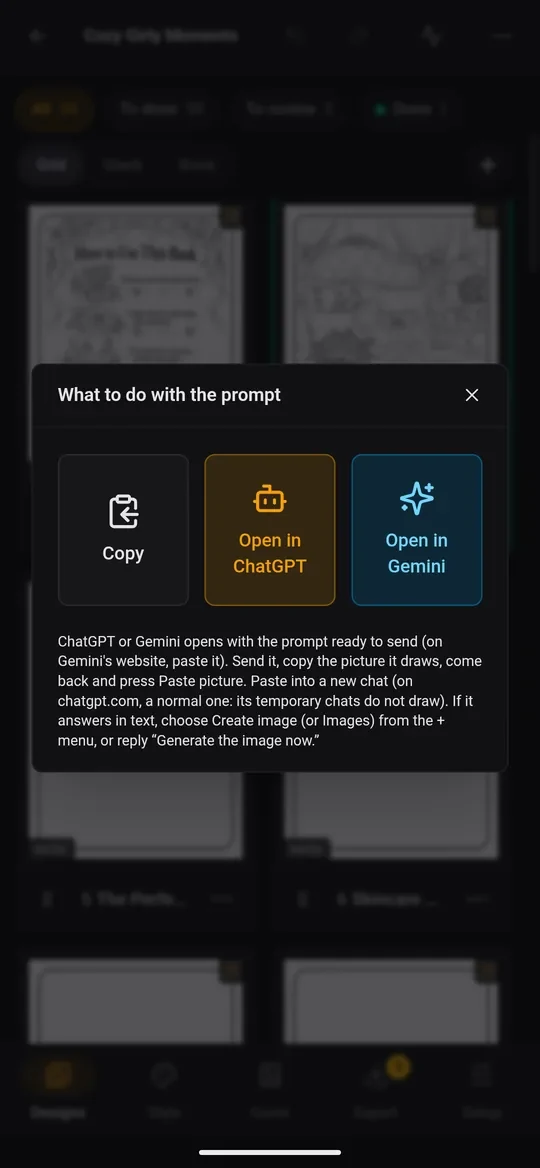
- Tap Get the prompt on a page. A dialog asks what to do with the prompt:
- Open in ChatGPT opens the ChatGPT app with the prompt ready to send.
- Open in Gemini opens the Gemini app (or its website, where you paste the prompt yourself).
- Copy just copies it, for any other app.
- Send the prompt and wait for the picture.
- Copy the picture: press and hold it in the chat, then choose Copy.
- Come back to KDPify and tap Paste picture. The picture is fitted to the page, at print size.
The page viewer
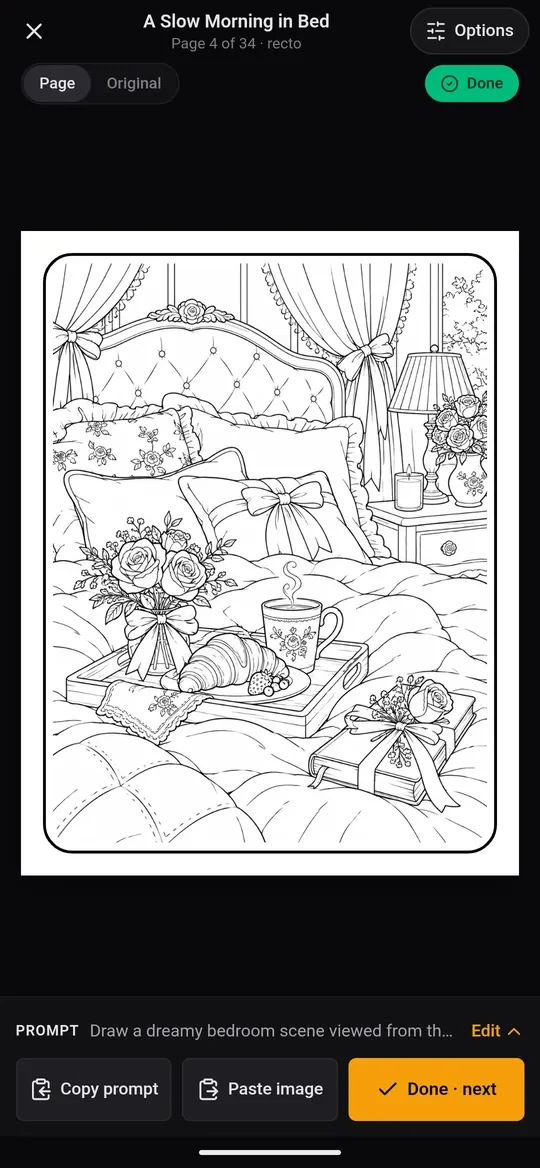
Tap any page's picture to open it full screen.
- Swipe left or right to move between pages.
- The bottom bar has Copy prompt, Paste image and Done · next, which marks the page as done and jumps to the next one.
- PROMPT shows what the page asks for. Tap Edit to change the subject. The style and print size are added for you, so only describe the picture.
- Page | Original switches between the finished page (with border and print processing) and the picture as drawn.
- The coloured pill shows the review status. Tap it to cycle Not reviewed → Done → Needs work.
Review as you go
The chips at the top of the Designs tab filter the pages: All, To draw, To review, Needs work and Done. A good rhythm is to draw a few pages, check them in the viewer, mark the good ones Done and flag the rest Needs work, to redraw later.
Look for the things that spoil a printed page: lines that don't close (for colouring), stray text, cut-off subjects, and a style that doesn't match the other pages.
Page actions
Press and hold a page (or tap its ⋯) for its actions:
- Get the prompt and Paste image
- Not reviewed / Done / Needs work
- Copy subject only: just your description, for a chat that already knows the style
- Rename
- Earlier drawings: every picture this page has had. Tap one to bring it back.
- Select: pick several pages to mark, duplicate or remove together
- Delete page (tap twice; you can undo it)
Drag a page by its grip to move it in the book.
Add pages
Tap + on the Designs tab:
- Import pages: pictures from your phone, one page each.
- Insert page: a new design, a blank page or a copyright page, anywhere in the book.
Draw many pages at once
With Promptline or an API key set up (see Choose how your pages get drawn), a Generate pages button appears. Choose which pages (not drawn yet, needs work, selected or all) and a limit, then tap Generate … pages. Pages are drawn in the background. Follow them in Jobs, and keep working on anything else.
Switch views
Grid shows two pages per row. Stack shows one page at a time, larger. Book shows facing pages in print order, with the covers, just as the printed book will open. Turn the phone sideways for a bigger view.