
A KDP paperback cover is one wide image: the back, the spine and the front, plus a little extra (bleed) around the edges that is trimmed off. Its exact size depends on the trim size, the paper and the page count. KDPify works all of that out and keeps it right as your book changes.
The Cover tab shows your cover full screen; pinch to zoom. Clean | Guides shows or hides the trim, spine and safe-area lines. The chips along the bottom open each tool over the preview.
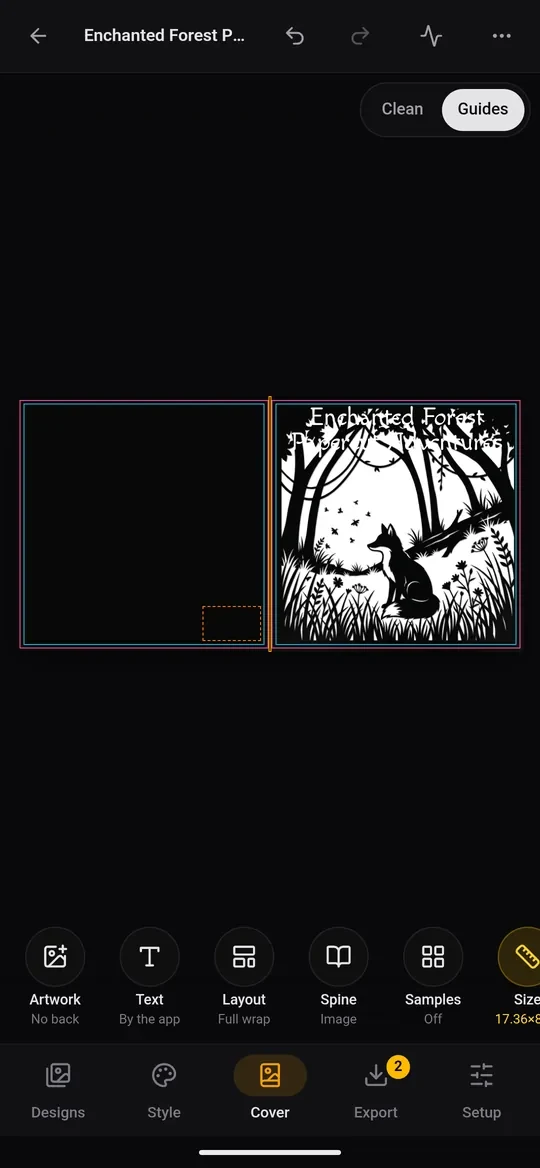
Artwork: draw the front and the back
The Artwork tool has one row for the Front cover and one for the Back cover. Each row has:
- Prompt: copy the cover prompt, or open it in ChatGPT or Gemini, exactly like a page.
- Paste image: paste the picture the chat drew.
- Select image: use a picture from your gallery.
With Promptline or an API key, the panel also has Generate front, Generate back and Both, front first.
Tap Edit next to the prompts to change them: the front and back prompts, the Cover style, Match the front (the back follows the front's look), and whether the picture should include the title (Render the title).
Layout guide gives the chat an image showing where the title and the back text will go, so the artwork leaves room for them. Copy the guide, paste it into the chat as an image, then send the guided prompt.
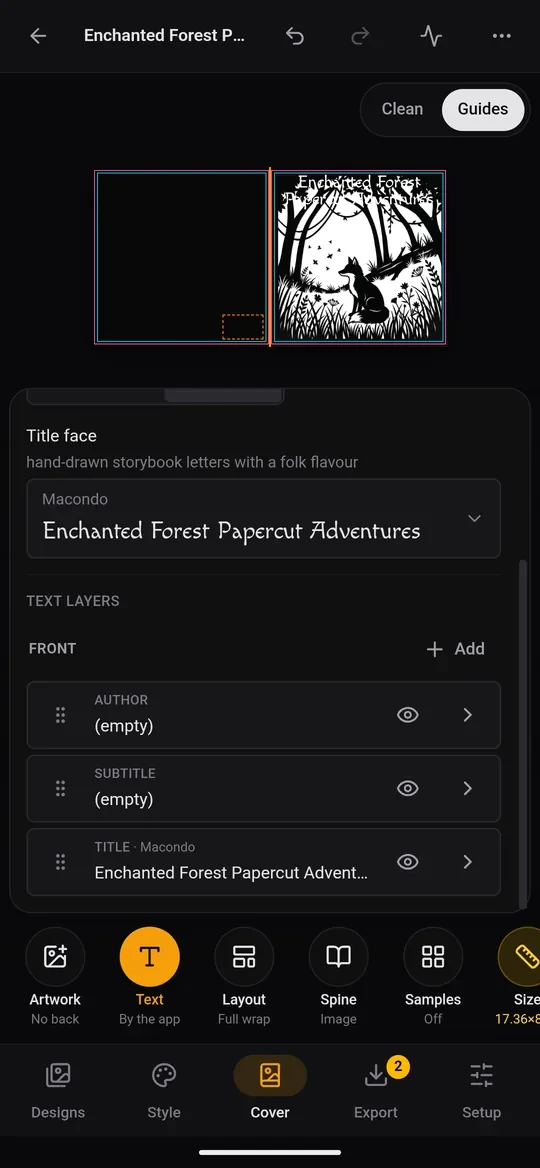
Text: title, subtitle and author
In Text, choose By the app for lettering. Pick a Title face (or search all Google Fonts), then add text layers: Title, Subtitle, Author, Tagline, Badge or free Text, on the front, the back or the spine. Each layer has its font, size, colour and position, plus an outline, shadow or glow for legibility, and an optional shape behind it. Drag layers on the preview to place them.
Layout, spine and samples
- Layout: Full wrap (the paperback) or Front only, and whether the artwork reaches the bleed, the trim or the safe area.
- Spine: the spine colour (auto-matched or picked), and whether the back is the image or a solid colour.
- Samples: show a few of your pages as small cards on the back cover, a classic for colouring books.
- Size: the full cover size, spine width and pixels at 300 DPI.
- History: every picture the cover has had. Tap one to bring it back.