

KDPify turns an idea into the two files Amazon KDP asks for when you publish a paperback: an interior PDF (the pages) and a cover PDF (front, spine and back in one piece). It sizes everything for KDP's print rules, so you can focus on the book itself.
The five steps
- Plan the book. Describe your idea to ChatGPT or Gemini. With KDPify's planning skill, the chat writes a page-by-page plan that you paste into the app. The book appears with every page listed and a drawing prompt ready for each one.
- Draw the pages. For each page, copy its prompt, let ChatGPT or Gemini draw it, and paste the picture back. KDPify fits it to the page.
- Finish the book. Choose the trim size and paper, add a border or page numbers, and make line art pure black and white if you need to.
- Make the cover. Draw a front and a back, add the title and author, and KDPify builds a full-wrap cover with the right spine width for your page count.
- Export and publish. Generate the interior and cover PDFs, then upload them in KDP with the title, description, keywords and categories the app prepared for you.
What you need
- The KDPify app on an Android phone, with an account. The free trial gives you 14 days and 3 books with no card.
- ChatGPT or Gemini. The free apps work. You use them to plan the book and to draw the pages. You don't need an API key.
- An Amazon KDP account when you are ready to publish. Creating one is free; see Set up your KDP account.
Kinds of books
- Colouring books. Clean line art, one design per page. This is the most common kind and the easiest to start with.
- Picture books. Full-colour illustrated pages. They need colour paper in KDP, which costs more to print.
- Books from your own pictures. Already have the artwork? Start an empty book and import it.
- Activity and puzzle books. Mazes, word searches and other layouts that the app composes. You can plan them, edit them and make their cover on the phone. The one step the phone can't do yet is the print file of the inside pages (the interior PDF): for that, save the book as a ZIP and open it in the KDPify app for Windows, which makes the PDF. See Back up and move your books.
Find your way around
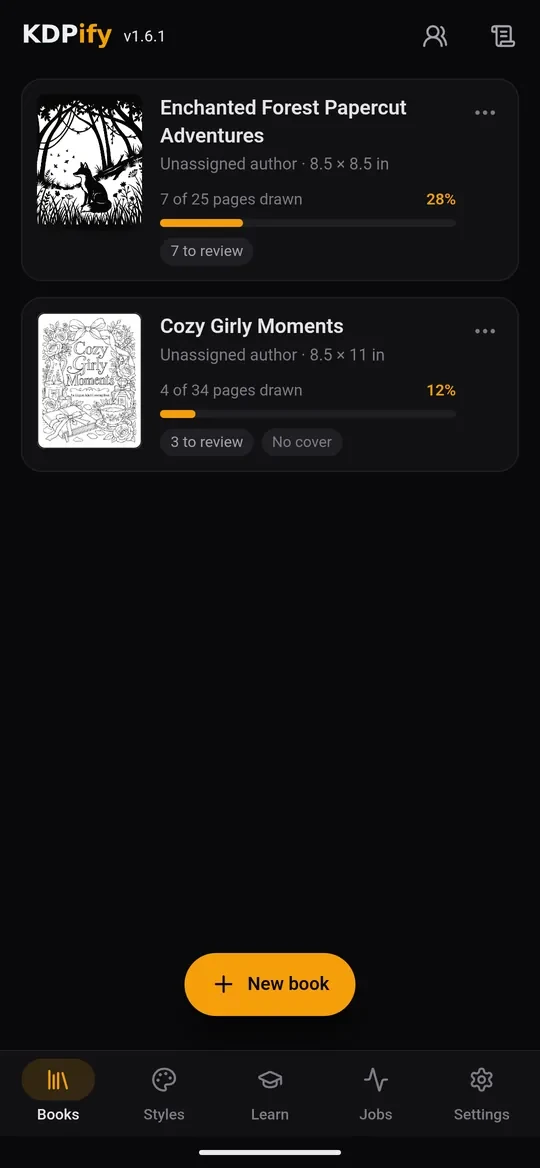
The book list has a bar at the bottom: Books, Styles, Learn (this course), Jobs and Settings. Inside a book, the bottom bar becomes Designs, Style, Cover, Export and Setup. Tap ⋯ at the top of a book, then the Help row, to open the lesson for the screen you are on.
Next, set up your account and see what the trial includes.