
The fastest way to a good book is to plan it in a conversation. KDPify gives ChatGPT or Gemini a planning skill: instructions that turn your chat into a book planner who knows KDP's print rules. When you agree on the plan, the chat writes it as JSON (structured text the app reads), and you paste it into KDPify.
1. Give the skill to your chat
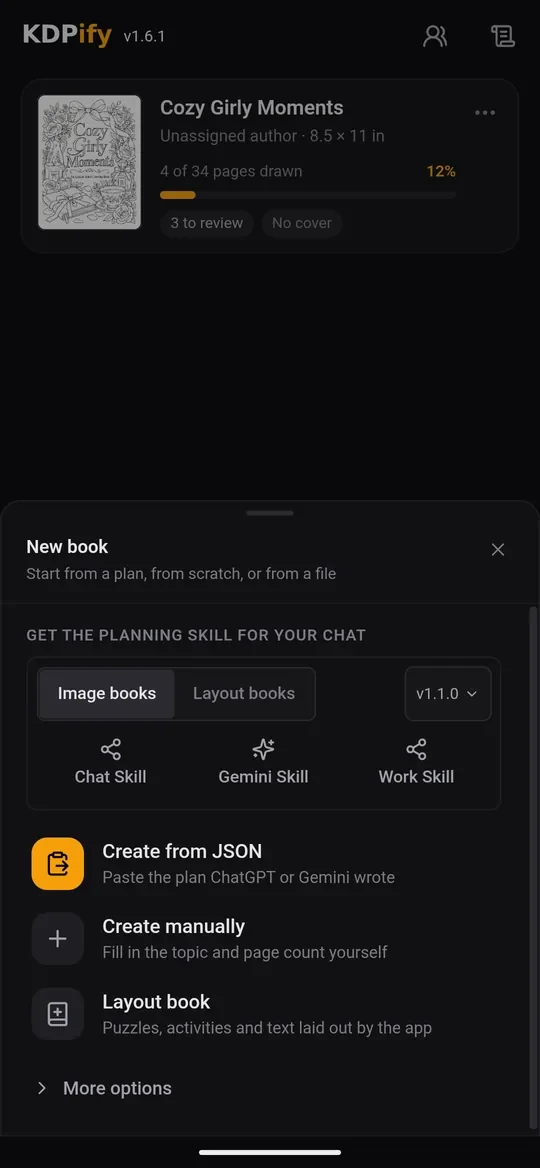
- On the book list, tap + New book.
- Under Get the planning skill for your chat, choose Image books (colouring, picture and illustrated books) or Layout books (puzzles and activities).
- Tap the tile for your chat: Chat Skill for ChatGPT, Gemini Skill for Gemini, or Work Skill for ChatGPT Work.
- Tap Share with ChatGPT (or Share with Gemini). The chat app opens with the skill files attached. If sharing doesn't work, use Copy selected skill and paste it into a new chat.
2. Plan together
Tell the chat what you have in mind, in your own words. For example:
"A colouring book for kids aged 4 to 8 about cute ocean animals. Can you suggest a few ideas?"
The chat asks about the reader, the purpose, the number of pages and the look, and it suggests themes and page ideas. Take your time here: the plan decides every page of your book. Ask for changes until you like it.
When you're happy, ask for the plan:
"This looks good. Give me the JSON."
3. Paste the plan
- Copy the chat's whole answer (use the chat's copy button under the answer).
- Come back to KDPify, tap + New book, then Create from JSON.
KDPify creates the book with every design listed, each with its own prompt, plus the style, trim size, cover prompts and a draft of your Amazon listing (title, description, keywords and categories). The book opens on the Designs tab, ready for drawing.
What's in the plan
- Designs: one entry per page, with a prompt describing the picture.
- Style: the look that every page follows (line weight, level of detail, what to avoid). See Keep every page in the same style.
- Book settings: trim size, paper and blank pages between designs.
- Cover prompts and listing: for the Cover tab and for KDP.
Everything can be changed afterwards, so don't worry about getting it perfect. Next, learn the other ways to start a book, or skip ahead to Draw your pages.