

Your books are stored inside the app. Android deletes an app's storage when the app is uninstalled, and your books with it. A backup folder you choose, such as Documents, is yours and stays.
Turn on automatic backups
The first time, KDPify asks with a sheet called Keep your books safe. Tap Choose backup folder and pick or create a folder (for example Documents/KDPify). From then on, every book is copied there as a book ZIP a moment after you change it.
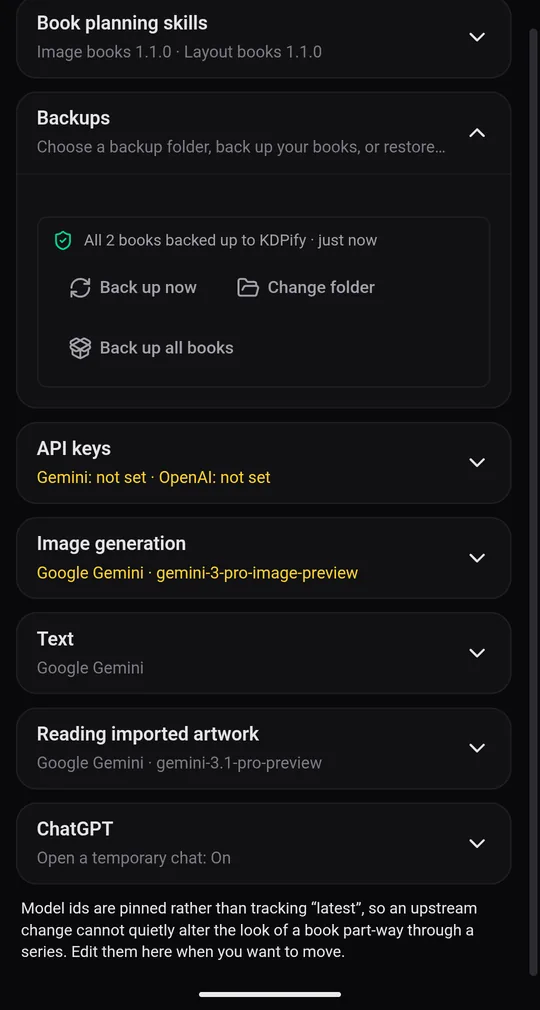
You can also set it up later in Settings › Backups. The status line tells you where you stand:
- Books are not backed up. Uninstalling the app deletes them.: no folder chosen yet.
- All … books backed up to … · followed by how long ago: you're safe.
Back up now forces a copy straight away. Change folder moves future backups.
Restore after reinstalling
Reinstalled the app, or set up a new phone? Choose the same folder in Settings › Backups. The app finds the books saved there and offers Restore. Tick the books you want back.
Move books to another device
- One book: in the book, Export › Book backup & transfer › Export book ZIP.
- All books: Settings › Backups › Back up all books saves them in one ZIP.
On the other device (another phone, or KDPify for Windows), tap + New book › More options › Import book ZIP. A book ZIP holds the pages, covers, settings and fonts, but not the exported PDFs (generate them again there) or your chat history.