
Filling in KDP's forms by hand takes a while. KDPify can do it for you: Publish with KDP hands your book to a small browser extension, the KDP Helper. In your browser, signed in to your own KDP account, it:
- fills the paperback details: title, subtitle, author, description, keywords, language and the book's classification;
- picks your categories;
- sets the print options: trim size, paper, bleed and cover finish;
- uploads the interior and cover PDFs;
- then stops at pricing so you check everything and press Publish yourself, or publishes for you if you choose that.
Everything it types comes from the book's Export › KDP listing, the same listing you can copy by hand in Publish your paperback on KDP by hand. Auto-publishing needs a paid plan.
Install it on your phone (Android)
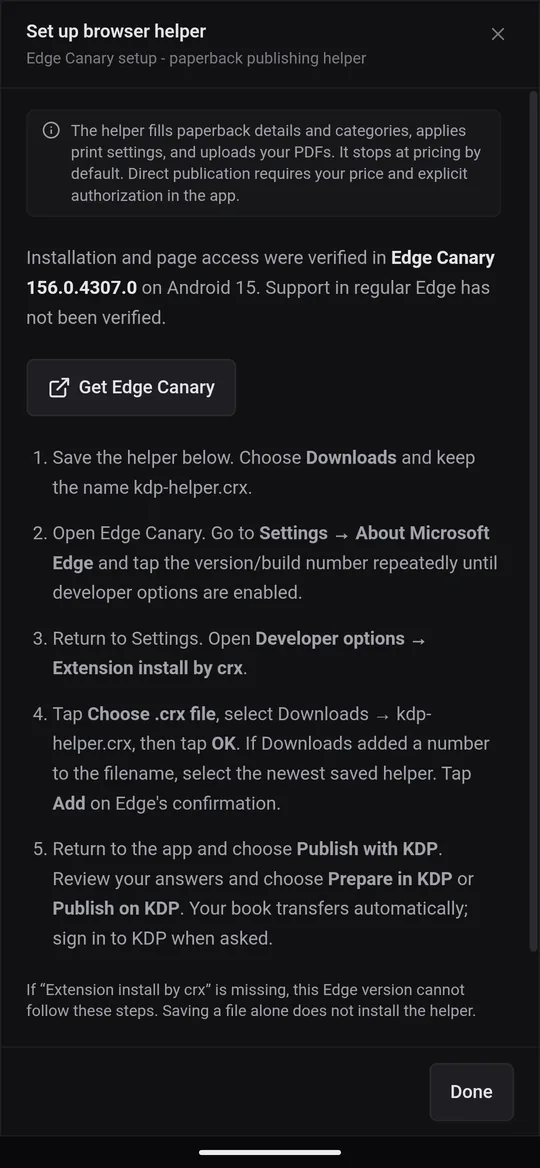
On Android the helper runs in Edge Canary, a free test version of Microsoft Edge that can install extensions. In the book, open Export › KDP listing and tap Set up browser helper. The steps are shown there too:
- Tap Get Edge Canary and install it from the Play Store.
- Tap Save browser helper. Choose Downloads and keep the name kdp-helper.crx.
- Open Edge Canary. Go to Settings › About Microsoft Edge and tap the version number several times, until developer options are turned on.
- Go back to Settings and open Developer options › Extension install by crx.
- Tap Choose .crx file, select kdp-helper.crx in Downloads, then tap OK. Tap Add when Edge asks to confirm.
Install it on your computer (Edge or Chrome)
With KDPify for Windows, publishing opens Microsoft Edge, or Google Chrome if Edge isn't installed. Install the helper in that browser. Your default browser doesn't matter. In the book, open Export › KDP listing and click Set up browser helper:
- Click Prepare extension folder. KDPify creates a kdp-helper folder and opens it in File Explorer.
- In the browser, open the extensions page: type edge://extensions in Edge or chrome://extensions in Chrome (Copy Edge extensions address and Copy Chrome extensions address copy it for you). Turn on Developer mode.
- Choose Load unpacked and select the kdp-helper folder. Copy folder path gives you its location to paste into the folder picker.
- Check that KDP Helper is enabled. Remove any older, disabled copy.
Publish a book with it
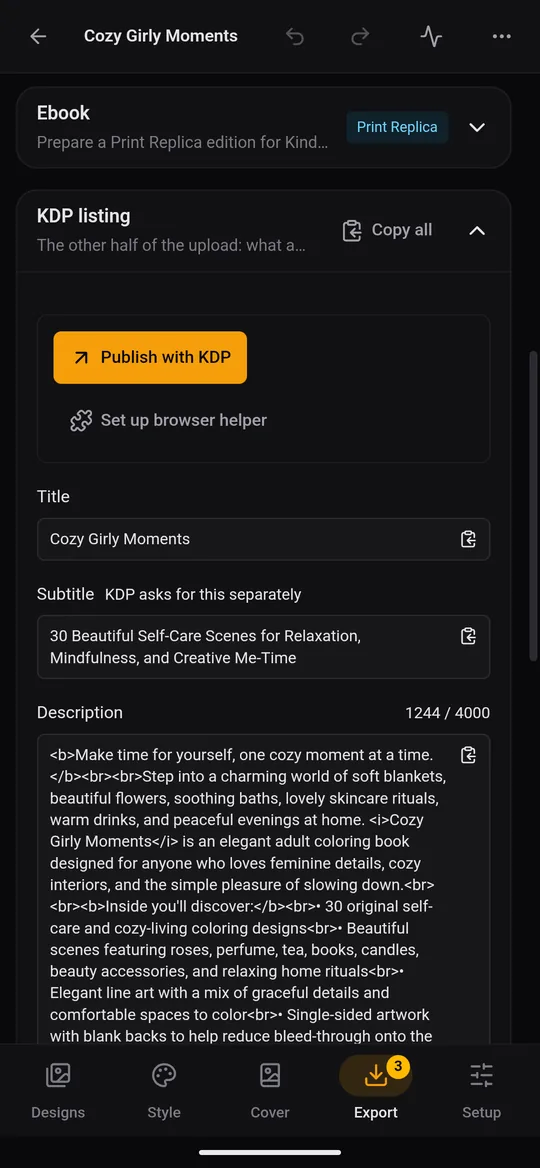
- In the book, open Export › KDP listing and tap Publish with KDP.
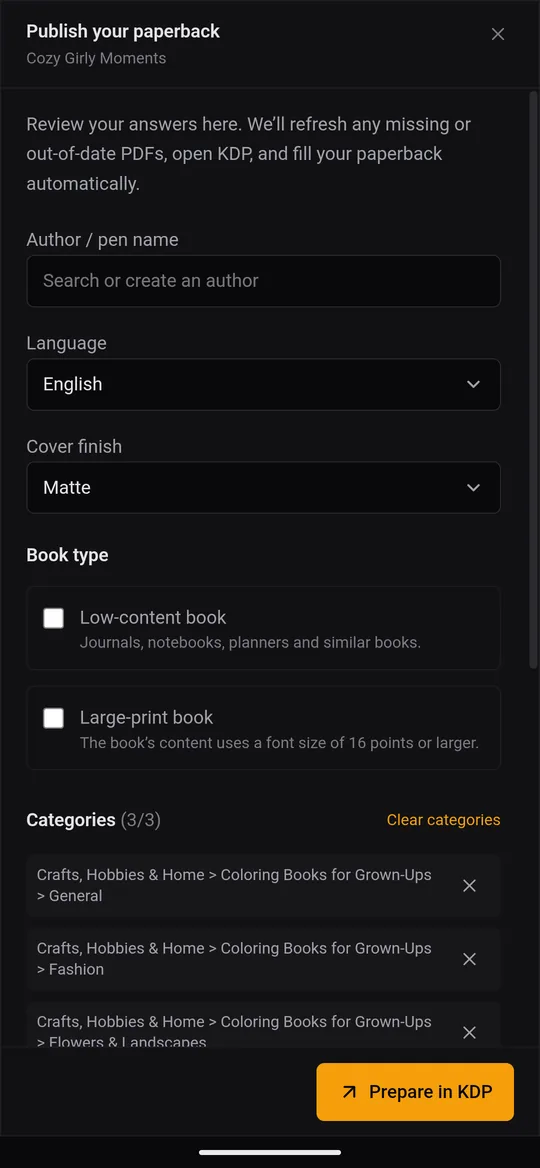
- Check the answers: Author / pen name, Language, Cover finish (Matte or Glossy), whether it's a Low-content book or a Large-print book, and the Categories: search for a subject and choose 1 to 3.
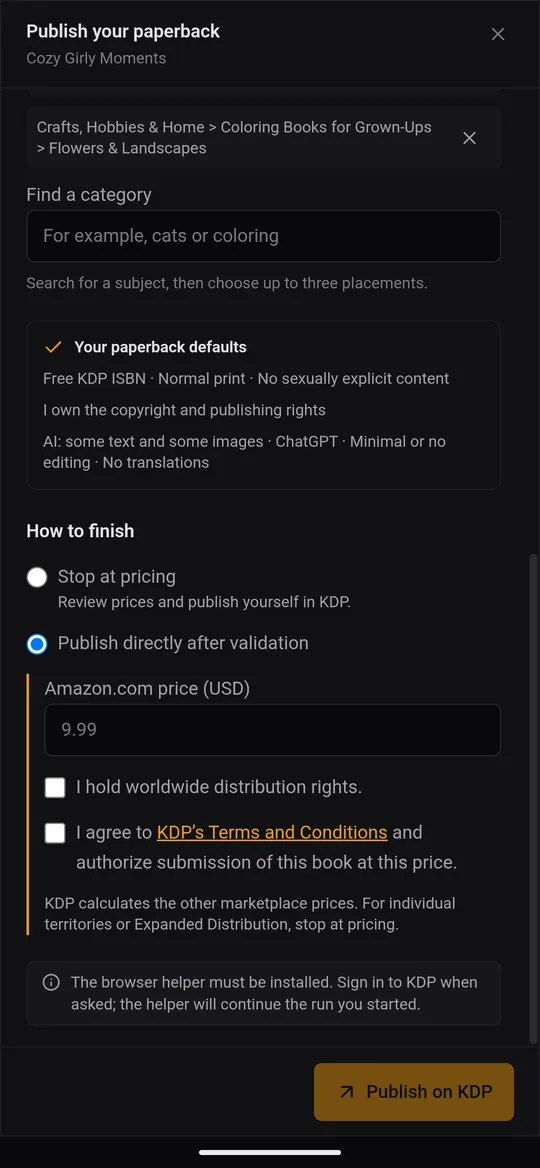
- Under How to finish, choose:
- Stop at pricing (recommended): the helper stops on KDP's pricing page. You review the prices and press Publish yourself.
- Publish directly after validation: enter the Amazon.com price (USD), confirm that you hold worldwide distribution rights, and agree to KDP's Terms and Conditions. The helper then publishes the book for you. KDP works out the other marketplaces' prices from it.
- Tap Prepare in KDP (or Publish on KDP). KDPify regenerates any PDF that is missing or out of date, then opens the browser with your book.
- Sign in to KDP if asked; the helper carries on with the run you started. Keep KDPify open until the transfer finishes.
The summary Your paperback defaults shows what the helper answers for you: the Free KDP ISBN (or no ISBN for a low-content book, where KDP doesn't offer one), the rights statement, the content declaration and the AI disclosure. Read it once so you know what's being submitted.