
A chat draws each page from scratch. Without guidance, page 12 can look nothing like page 3. The Style tab fixes that: what you write there is added to every page's prompt automatically.
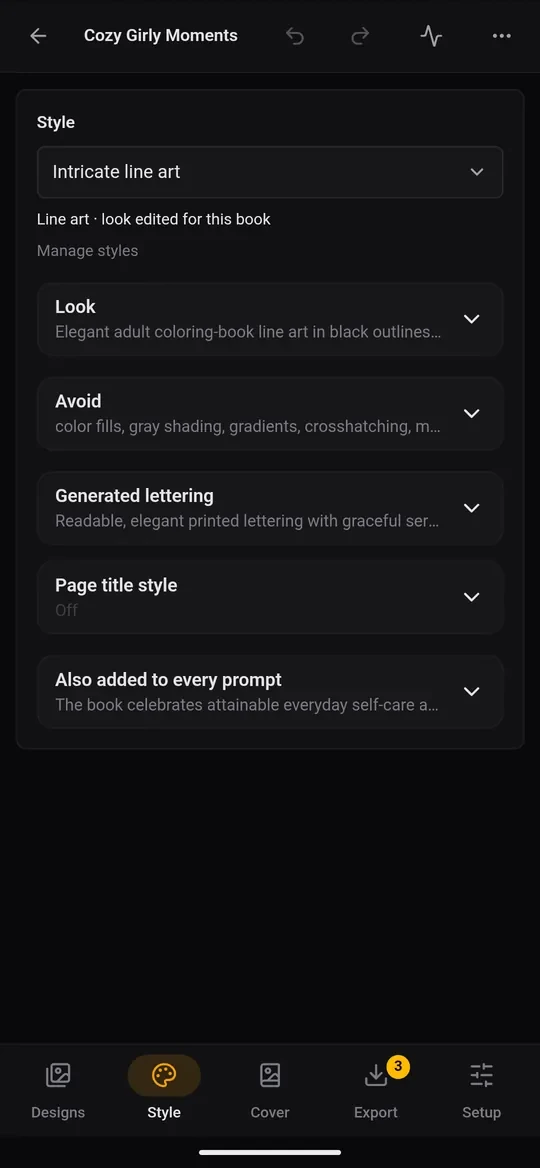
Pick a style
At the top, the Style list has ready-made looks, grouped by kind of artwork:
- Colouring pages, line art: clean black outlines on white, nothing filled in.
- Black & white print, solid shapes: bold black-and-white art (monochrome).
- Greyscale, soft shading: shades of grey.
- Full colour: for picture and activity books, printed on colour paper.
Choosing a style also sets the book's kind of artwork, which decides how pages are prepared for print. Custom, write your own lets you start from a blank look.
The parts of a style
Tap a row to edit it:
- Look (every page follows this): line weight, level of detail, how the subject fills the page, the mood. Be specific: "thick, even black outlines; large simple shapes for young children; one centred subject; plain white background."
- Avoid (never on any page): "text, shading, grey fills, borders, cut-off subjects."
- Generated lettering applies only to pages marked as containing lettering.
- Page title style: the font, weight, size, alignment and capitals for page titles that the app sets above the pictures. Tap Set up page titles.
Your style library
Manage styles (or Styles in the book list's bottom bar) opens your library. Tap + New to save a look you like and reuse it in future books. Press and hold a style to edit or delete it. Built-in styles carry a built-in badge, and More › Restore built-ins brings back any you deleted.