

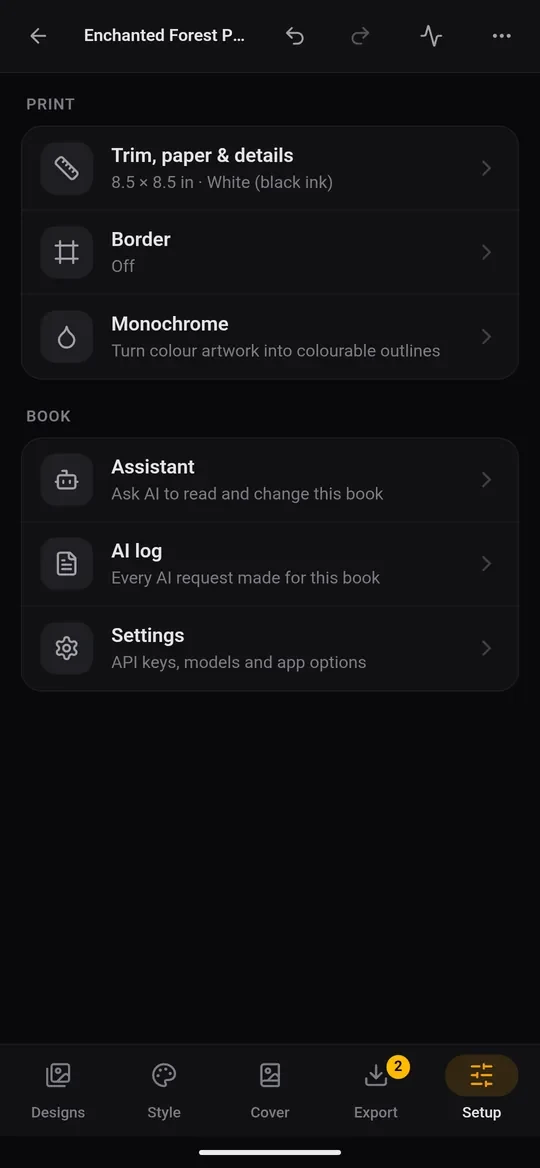
The Setup tab holds the print settings. Each row opens its own screen; the back arrow returns to Setup.
Trim, paper & details
The numbers at the top update as you work: the number of Designs and Interior pages, the Spine width, the Print cost / copy, the Lowest list price KDP will accept and, for colour books, the premium colour floor. They are estimates; KDP shows the exact figures when you upload.
Below them:
- Book details: the title and author.
- Trim size and paper: the KDP trim size (8.5 × 11 in is the usual choice for colouring books; 6 × 9 and 8 × 10 are common too) and the Interior paper. Line art and greyscale books use White or Cream with black ink. Full-colour books need Standard colour or Premium colour, which cost more to print. Grayscale interior prints a colour book in black ink.
- Equalizer: Darkness makes faint drawings print darker and more even, from page to page.
- Blank pages: Blank page between designs (recommended for colouring books, so markers don't bleed through onto the next picture), a blank after the last design, and Pad to an even page count. You can replace the blanks with a shared artwork, such as a small pattern or a "This page is intentionally blank" note.
- Margins and placement: the binding margin (Auto follows KDP's rules for your page count) and Trim white space around artwork.
Border
A frame around each picture, and page numbers. The page stays on screen while you adjust it; swipe to check other pages. The tool chips along the bottom:
- Frame: turn the border on or off.
- Line, Corners, Colour: how the frame looks.
- Inset and Padding: how far the frame sits from the page edge and from the picture. Inset turns amber if it comes closer to the edge than KDP's margin.
- Zoom: shrink or enlarge the picture inside the frame.
- Numbers: page numbers, their style, size, and the pages they start and end on.
Monochrome
For books drawn in solid black-and-white (the monochrome style), this tool traces each picture into clean, colourable outlines, on your phone with no AI. The chips let you choose All pages or This page, then adjust Ink (what counts as black), Outline thickness, Solid (keep thin shapes filled), Speckle (remove dust) and an optional Fill pattern. Tap Trace … pages to process them.